 Points Points!
The app
Make more of
what you already have.
Set goals for a more personal experience. Then compare your credit cards, discover benefits, and get optional Lock Screen suggestions when you arrive.
01 / Goals & personalization
Start with a goal.
Make rewards personal.
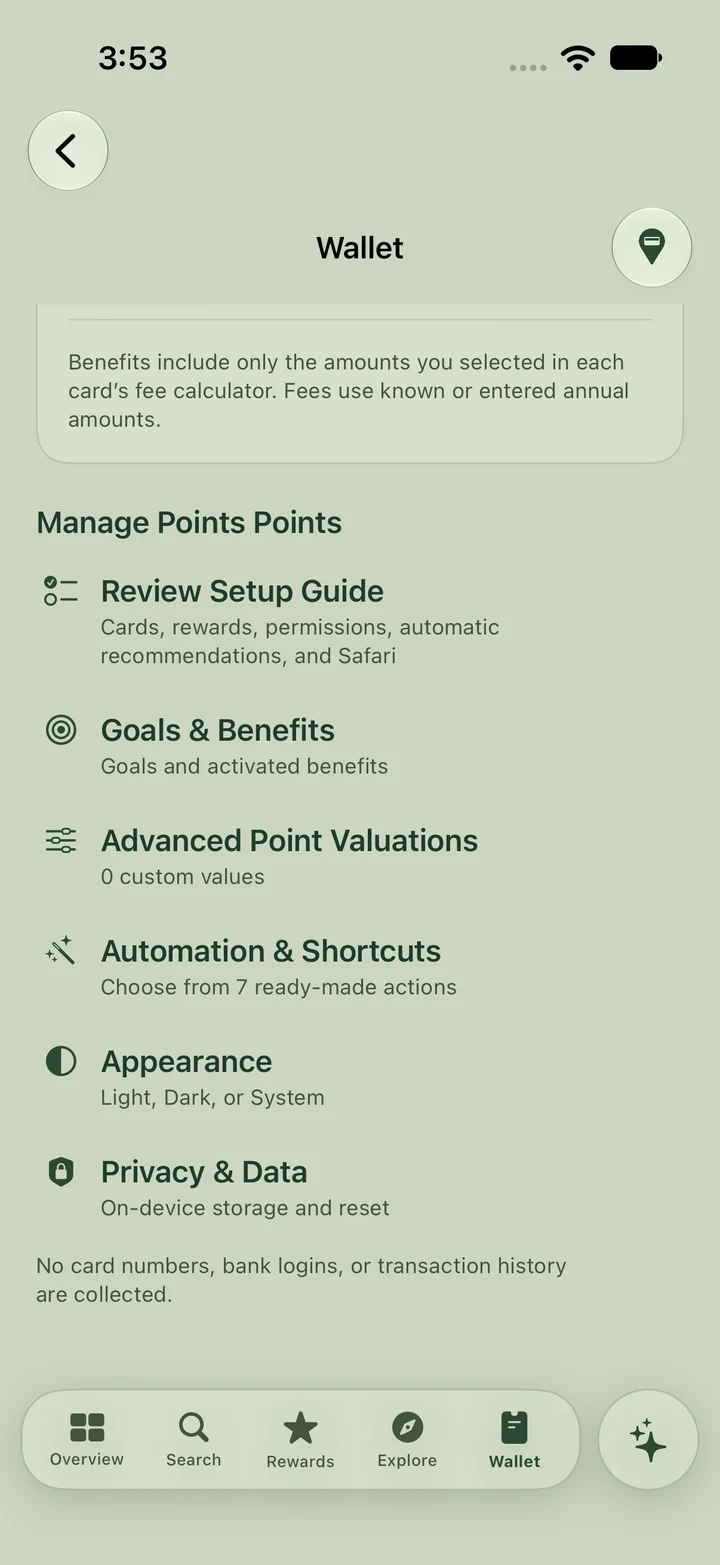
A trip on points. A hotel stay. Your next status milestone. Tell Points Points! what you’re working toward, so supported recommendations can reflect what matters to you. Open Wallet → Goals & Benefits, shown here, to choose a supported goal. Your active goal, program preferences, and point valuations can shape relevant card comparisons.
- Supported points and status goals
- A personal goal name and a pin on Overview
- Manual progress updates and program preferences
Goals are optional. Recommendations still account for reward rules, eligibility, and the information available. Progress you enter is recorded manually; it is not linked to your loyalty account.
Set up your goals02 / Location-aware recommendations
Your best card.
Before you pay.
With automatic recommendations enabled, Points Points! uses arrival context to identify a supported nearby place and compare the eligible cards in your Wallet. When there’s enough confidence, a local notification brings the recommendation to your Lock Screen.
See the card to use without opening the app. Tap the alert to review the exact recommendation and why it fits.
- You choose whether to enable location and notifications.
- Personalized card comparisons run on your device.
- Nearby and Search help when the place isn’t clear.
Background arrival alerts require Always location access and notification permission, and depend on iOS delivery. You still select your payment card yourself.
Set up arrival alerts Points Points!now
Use Amex Platinum
At this location · based on your Wallet and settings
Your alert names an eligible card from your Wallet.
03 / Lock Screen widget
A little widget.
A quicker check.
Add the Points Points! Best Card Here widget to your iPhone Lock Screen. See a compact card label at a glance, then tap to open Points Points! and check nearby.
Keep the widget beneath your clock and arrival recommendations in your notifications. A helpful card suggestion is close at hand when you’re ready to pay.
About the Lock Screen widgetiOS controls widget refresh timing. The widget can show a last-known recommendation or an everyday default until a new nearby check is available.
Points Points!nowUse Amex Platinum
At this location · based on your Wallet and settingsExample card and notification; actual content depends on your Wallet.
04 / Card comparisons
A recommendation
with a reason.
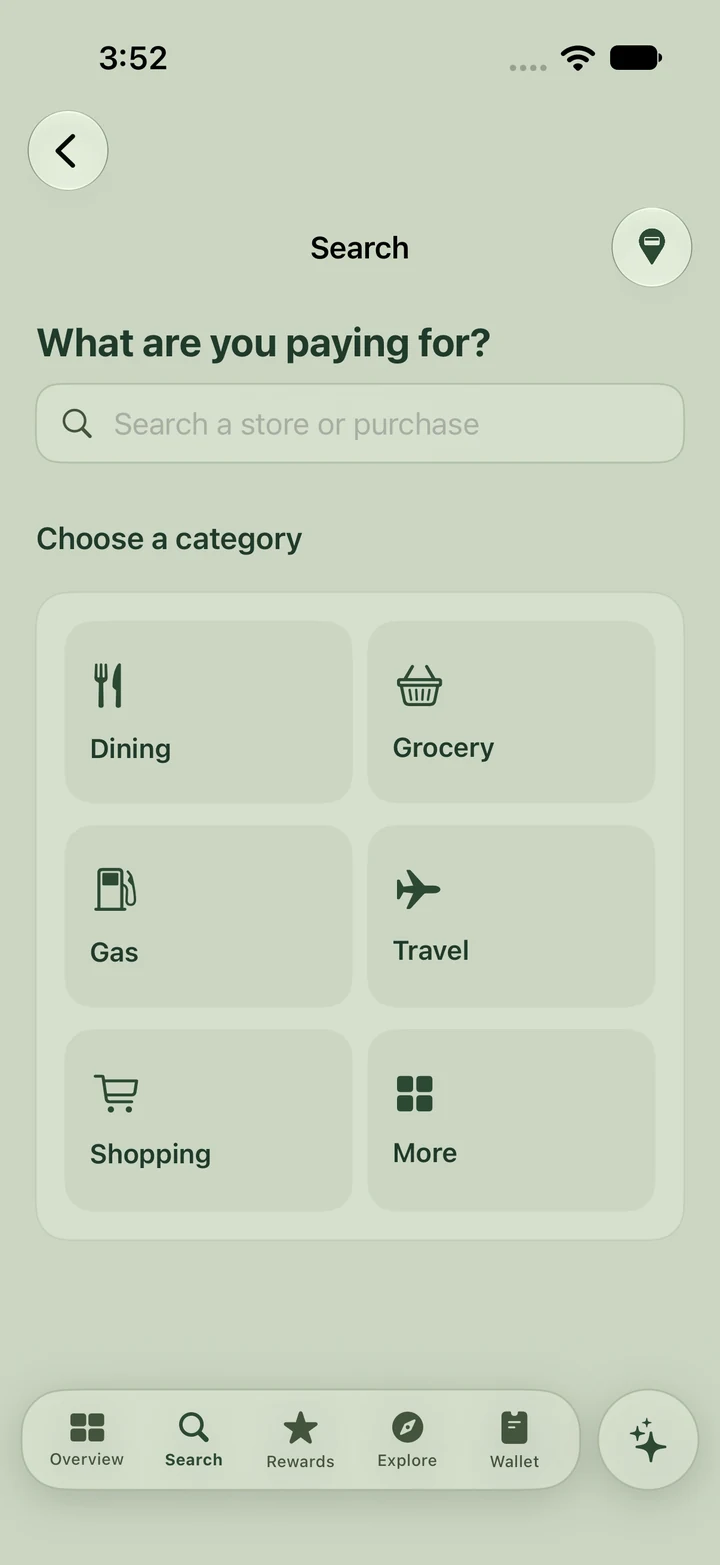
Start in Search with a store or purchase category, as shown here. Then compare your cards using estimated reward value and review the earning rate, point valuation, and conditions behind the result.
The multiplier is the beginning.
The value is what matters.
05 / Benefits & subscriptions
Find the details
that make a difference.
Start in Explore, shown here, and open Entertainment to review supported subscription choices. The tools explain when a credit depends on a provider, billing path, enrollment, or other condition.
Compare possibilities before changing a plan or payment card. A comparison doesn’t change your subscriptions or make a payment.
Understand recommendation limits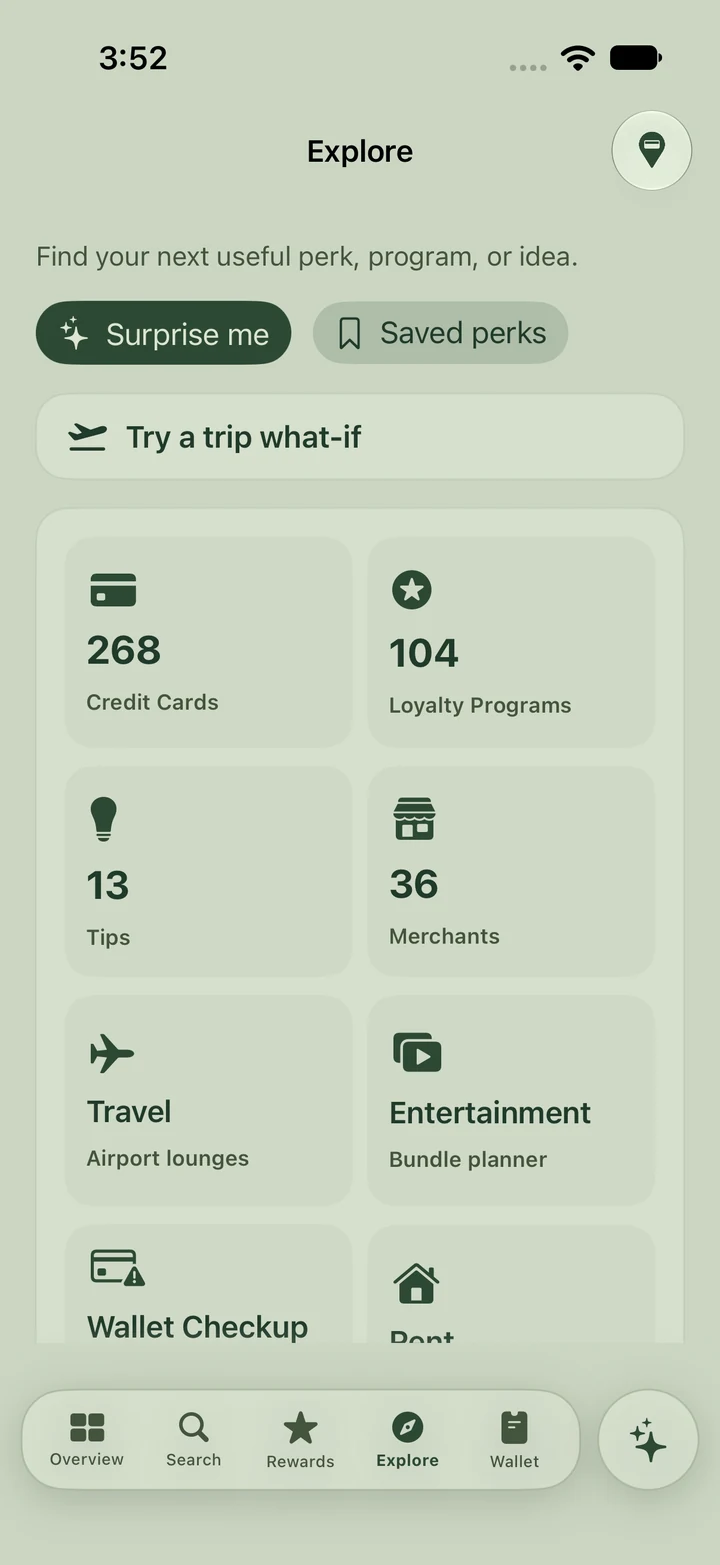
06 / A fuller picture
See the upside.
And the tradeoffs.
When you explore a card opportunity, look beyond a single headline benefit. Recommendations can explain fees, restrictions, eligibility, and other material pros and cons.
Value you can understand
Estimates tied to the information and assumptions available.
Conditions you can check
Enrollment, caps, billing requirements, and issuer rules matter.
A decision you control
A recommendation is a starting point for your own review.
07 / Your kind of calm
Sage by day.
Forest by night.
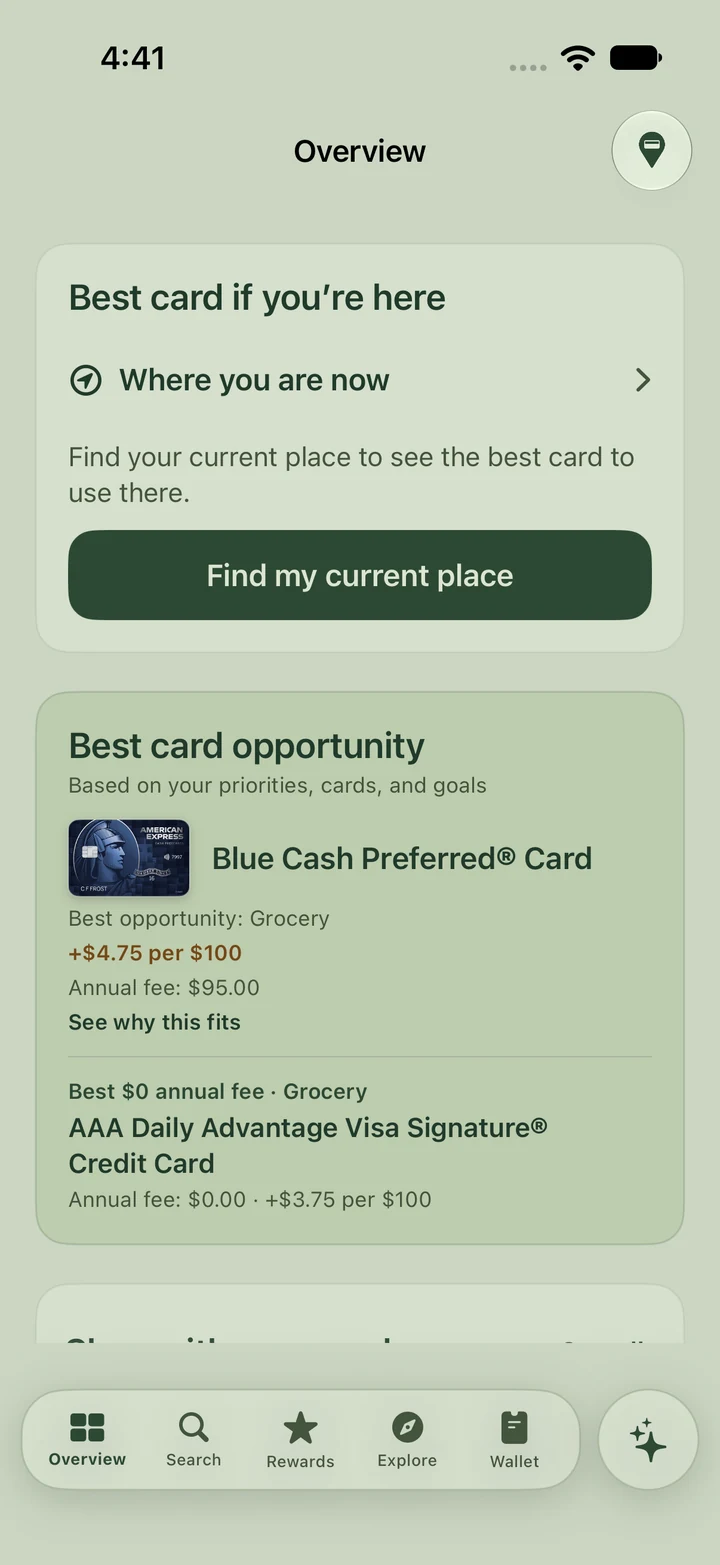
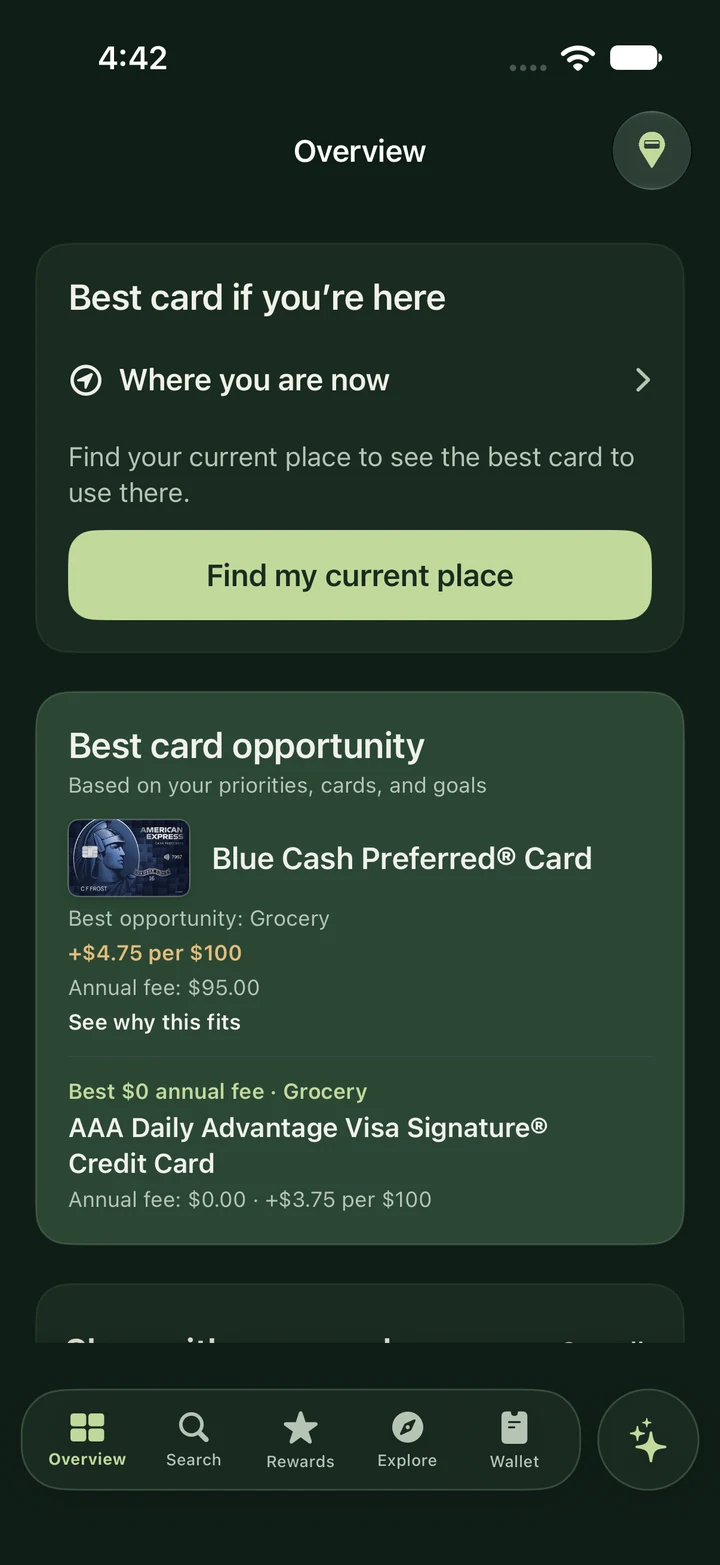
Choose Light, Dark, or System in Wallet → Appearance. A calmer palette, whichever feels right.
Make your next purchase count.
Always free to use. Privacy first. That’s Points Points!